User guide 05

Signal Bots

How to set a Signal Bot, backtest the rules first, and read what actually happened on a simulated account.

Download the PDF guide

A Signal Bot lives on Bot Settings, at /botsettings. Each bot subscribes to its own signals and trades them with the same entry and exit settings as the Backtest page. You can run several at once. A new bot starts switched off. Orders follow the account mode: Live, Demo, or Simulate.

This walkthrough is real use on a demo account in SIMULATE mode. The trades and the backtest used simulated funds. Nothing reached a real exchange. One narrow setup ran for about 10 minutes and placed no orders. A matching backtest finished unprofitable. A wider setup then placed two limit orders that had not filled when we stopped. Those are the results. They are for learning the screens, not for copying a bot.

Changes on Bot Settings only take effect after you press Deploy Settings.
Educational only, not financial advice. Past performance does not predict future results. Leveraged futures carry a high risk of loss. Nothing in this guide is an offer to trade, a signal, or a promise of profit. A bot does not change the market.

In this guide

Step 01 of 10

What a Signal Bot is

Open Bot Settings from the top navigation, at /botsettings. The page has three tabs: Notes, Bot Status & Risk, and Signal Bots, plus a Deploy Settings button. Changes only take effect after you press Deploy Settings.
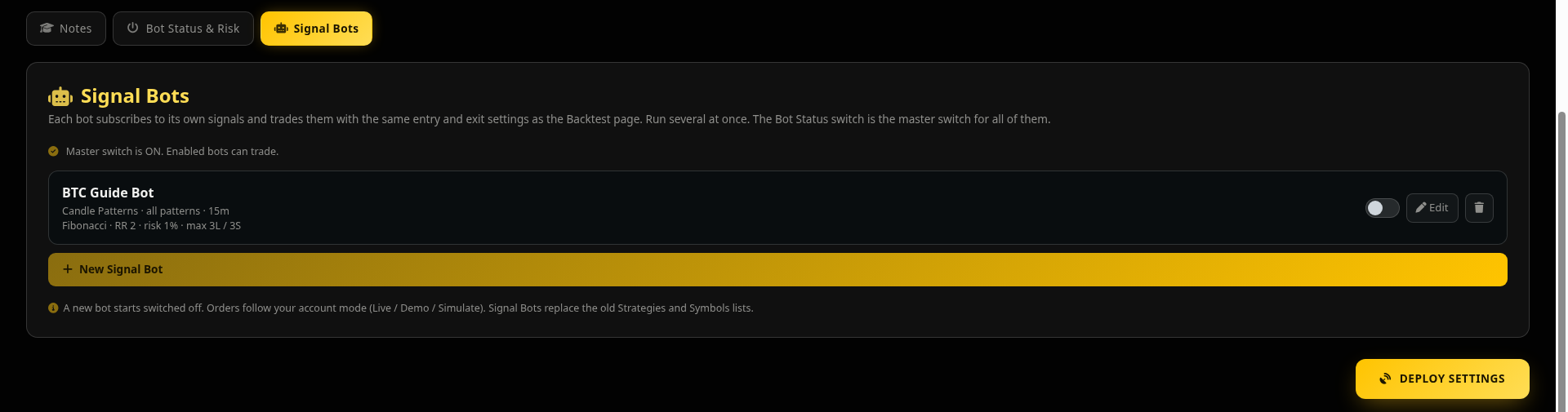
On the Signal Bots tab, each bot subscribes to its own signals and trades them with the same entry and exit settings as the Backtest page. You can run several at once. The Bot Status switch is the master switch for all of them.

A new bot starts switched off. Orders follow your account mode (Live, Demo, or Simulate). In this walkthrough the account stays in SIMULATE. The first bot we created was named BTC Guide Bot. The toggle on its card is off until you arm it and deploy.

Signal Bots tab showing BTC Guide Bot created and switched off, with a Deploy Settings button.
Figure 1. The Signal Bots tab after a bot is created. BTC Guide Bot starts switched off. The note under the card says a new bot starts switched off, and that orders follow the account mode (Live / Demo / Simulate). Deploy Settings sits at the lower right.

Step 02 of 10

Read the Notes first

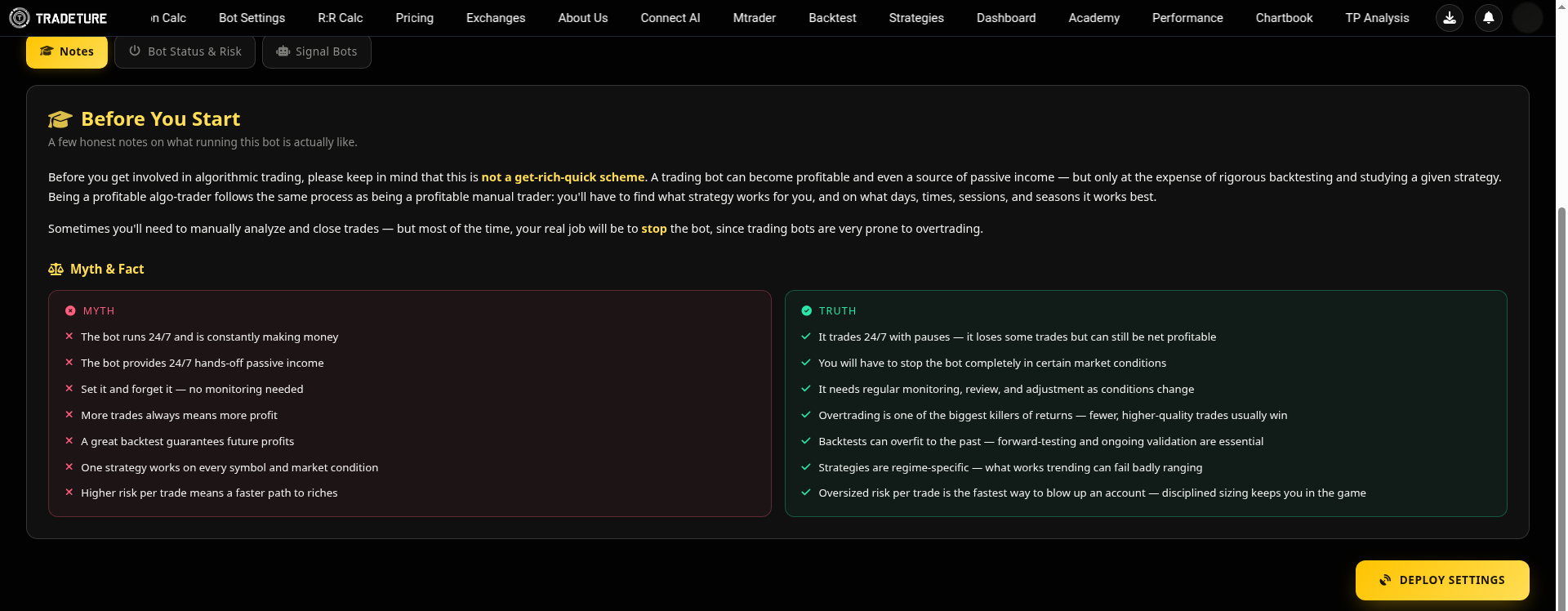
Before you build a bot, open the Notes tab. The Before You Start panel is blunt: this is not a get-rich-quick scheme. The site says your real job, most of the time, is to stop the bot, because trading bots are prone to overtrading.

The Myth & Fact list is worth reading in full. Three of the pairs are:

  • Myth: the bot runs 24/7 and is constantly making money. Fact: it trades 24/7 with pauses, and it loses some trades.
  • Myth: more trades means more profit. Fact: overtrading kills returns.
  • Myth: higher risk is a faster path. Fact: oversized risk blows up accounts.

The other facts on that screen say the same thing in different words. You will have to stop the bot in some market conditions. A backtest can overfit the past. One strategy does not work on every symbol.

Notes tab with Before You Start and the Myth and Fact list.
Figure 2. The Notes tab. Before You Start says this is not a get-rich-quick scheme, and that your real job is mostly to stop the bot. Myth & Fact sits under that.

Step 03 of 10

The master switch and account risk

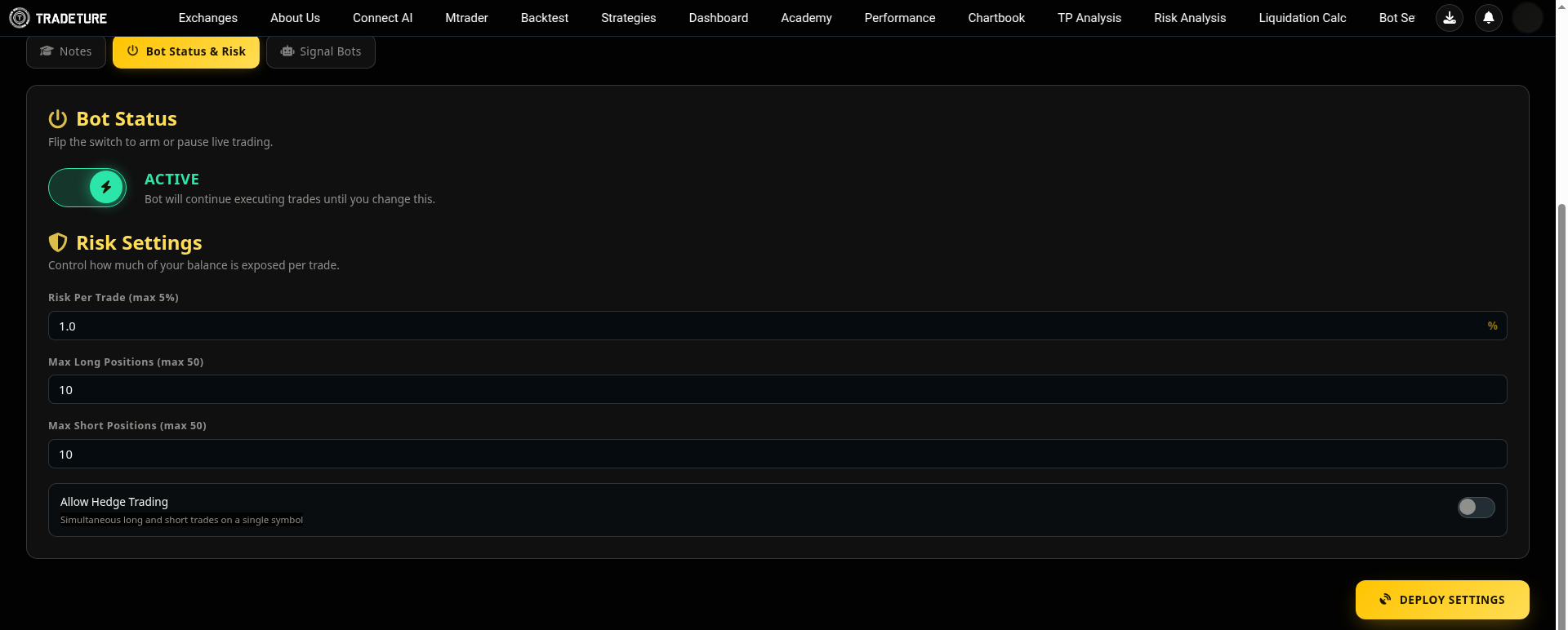
The Bot Status & Risk tab holds the master switch for every bot. It shows ACTIVE or PAUSED. The helper text is: "Flip the switch to arm or pause live trading." When it is ACTIVE, enabled bots can trade until you change it. This switch controls all bots. Each bot also has its own on/off toggle on the Signal Bots tab.

Under Risk Settings, this demo account was set to:

Field Value What it is
Risk Per Trade 1.0% Account cap per trade, maximum 5%.
Max Long Positions 10 Account cap on open longs, maximum 50.
Max Short Positions 10 Account cap on open shorts, maximum 50.
Allow Hedge Trading Off Simultaneous long and short trades on a single symbol.

These are account-level caps. Each bot also has its own risk per trade and its own max open long and short, on the Entry & risk tab. Press Deploy Settings after you change either place.

Bot Status and Risk tab with the master switch ACTIVE and risk settings at 1 percent, 10 long, 10 short, and hedge off.
Figure 3. Bot Status & Risk. The master switch is ACTIVE. Risk Per Trade is 1.0%. Max long and max short are both 10. Allow Hedge Trading is off.

Step 04 of 10

Create a bot: Signals

Press + New Signal Bot. Give the bot a name. The form has four tabs: Signals, Symbols, Entry & risk, and Schedule. The top right of the form reminds you that a new bot starts switched off.

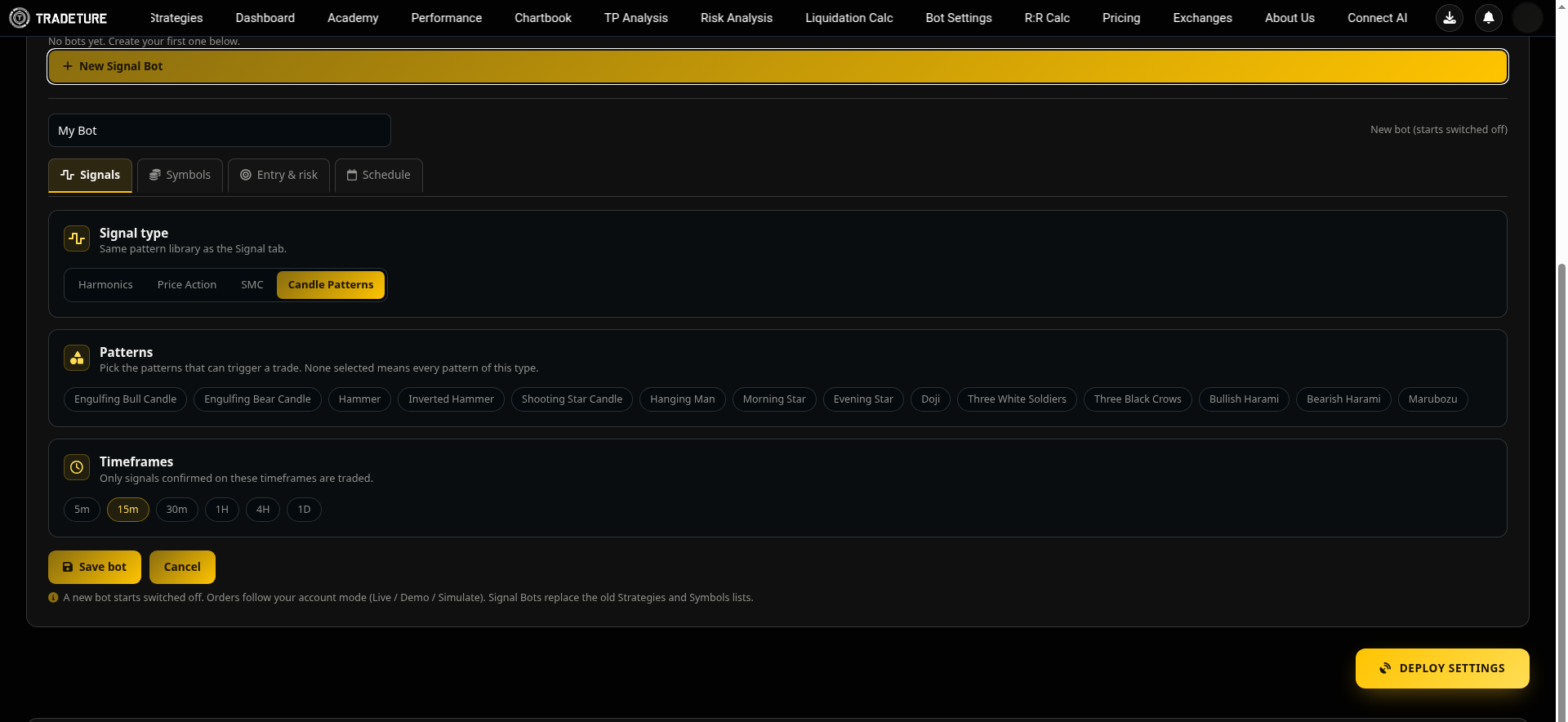
On Signals, pick a signal type: Harmonics, Price Action, SMC, or Candle Patterns. Candle Patterns is the default. This walkthrough uses Candle Patterns.

Patterns lists 14 candle patterns: Engulfing Bull Candle, Engulfing Bear Candle, Hammer, Inverted Hammer, Shooting Star Candle, Hanging Man, Morning Star, Evening Star, Doji, Three White Soldiers, Three Black Crows, Bullish Harami, Bearish Harami, and Marubozu. If none are selected, the bot uses all of them.

Timeframes are 5m, 15m, 30m, 1H, 4H, and 1D. The default is 15m. Only signals confirmed on the timeframes you choose are traded.

New Signal Bot form on the Signals tab, with Candle Patterns selected, no individual patterns ticked, and 15m selected.
Figure 4. The Signals tab on a new bot. Candle Patterns is selected, no individual patterns are ticked (so all 14 are used), and the timeframe is 15m. Save bot and Deploy Settings are at the bottom.

Step 05 of 10

Create a bot: Symbols

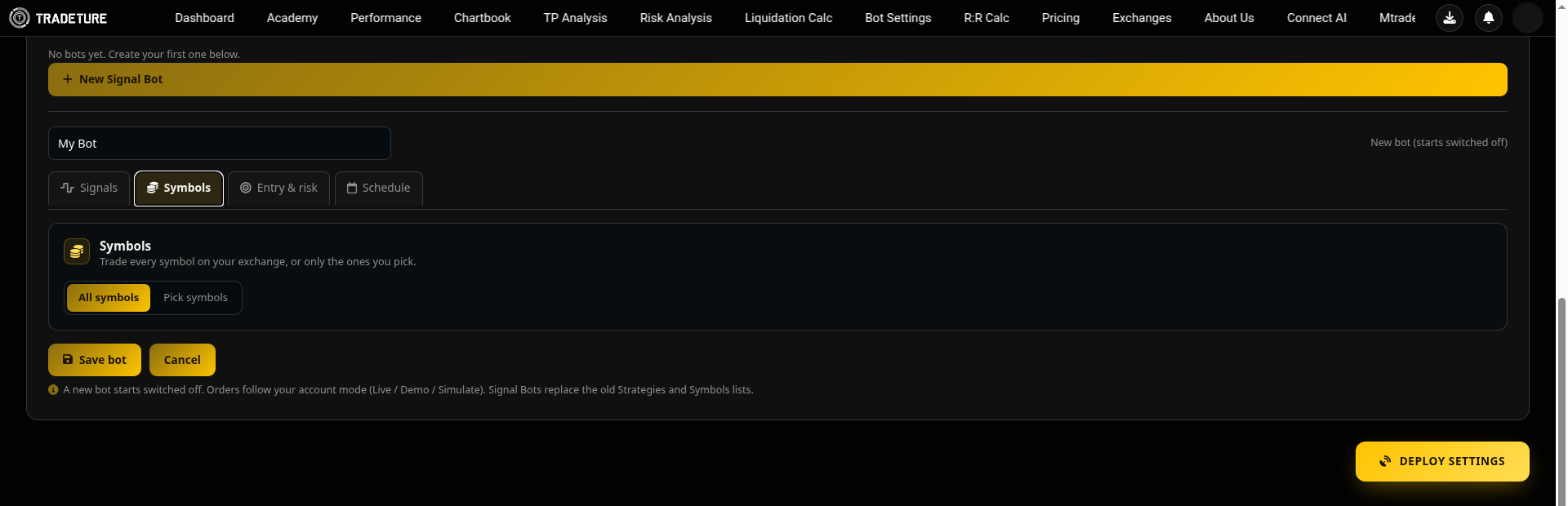
The Symbols tab has two choices: All symbols, which is the default, or Pick symbols, which opens a search box. All symbols means the bot can trade every symbol on your exchange. Pick symbols limits it to the contracts you add.

The first run in this walkthrough was set up with Pick symbols and BTCUSDT only. The second run used All symbols. After you save, the bot card shows the signal type, timeframes, entry rule, risk, and position caps. Check the Symbols tab itself if you need to confirm which contracts are selected.

New Signal Bot form on the Symbols tab, with All symbols selected as the default.
Figure 5. The Symbols tab, with All symbols selected. That is the default. Pick symbols is the other choice, and it opens a search box. The note under Save bot repeats that a new bot starts switched off.

Step 06 of 10

Create a bot: Entry and risk

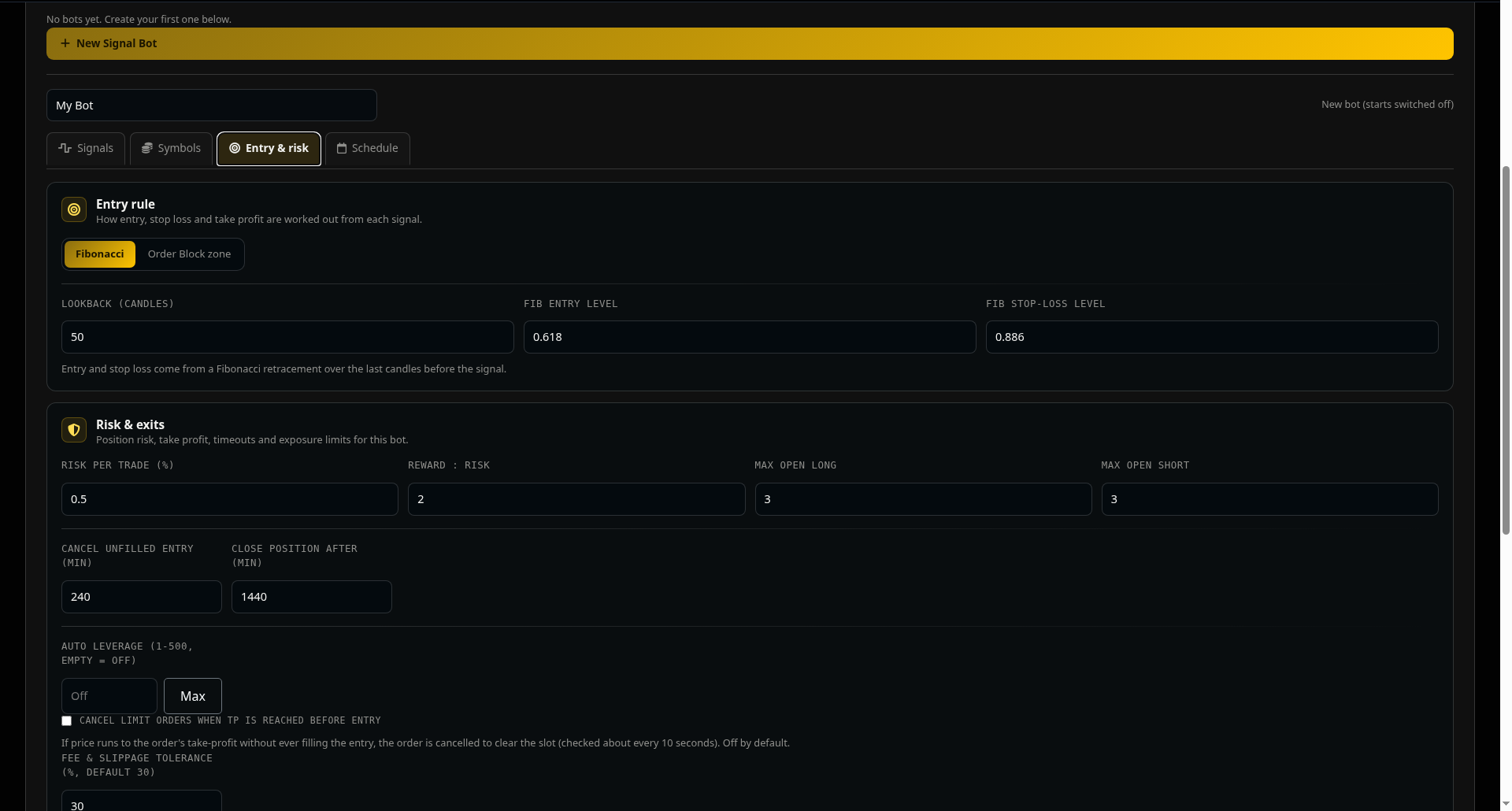
This tab sizes the trade. Entry rule is Fibonacci, the default, or Order Block zone. Fibonacci defaults to a 50-candle lookback, an entry at 0.618, and a stop at 0.886. The helper is: "Entry and stop loss come from a Fibonacci retracement over the last candles before the signal."

Risk & exits defaults are:

Field Value What it is
Risk per trade 0.5% Planned risk for each signal this bot takes.
Reward : Risk 2 Target reward multiple of that risk.
Max open long / short 3 / 3 Open-position caps for this bot.
Cancel unfilled entry 240 min Working entry is cancelled after this time.
Close position after 1440 min Open position is closed after this time.

Auto leverage accepts 1 to 500. Leave it empty to leave it off. If a symbol's leverage needs updating, that one signal is skipped and the update is sent. An optional checkbox, off by default, cancels a limit order if price reaches the take-profit before the entry fills. The screen says this is checked about every 10 seconds.

Fee & slippage tolerance defaults to 30%. Before the bot trades a signal, it works out the real loss if the stop is hit: 1R, plus one tick of slippage, plus entry and exit fees. If that all-in loss is more than 1.3R, with the 30% default, the signal is skipped.

Entry and risk tab showing Fibonacci defaults, 0.5 percent risk, reward to risk of 2, and fee and slippage tolerance at 30 percent.
Figure 6. Entry & risk, with the Fibonacci defaults, 0.5% risk, reward-to-risk of 2, max open 3 long and 3 short, and fee & slippage tolerance at 30%.

Step 07 of 10

Create a bot: Schedule

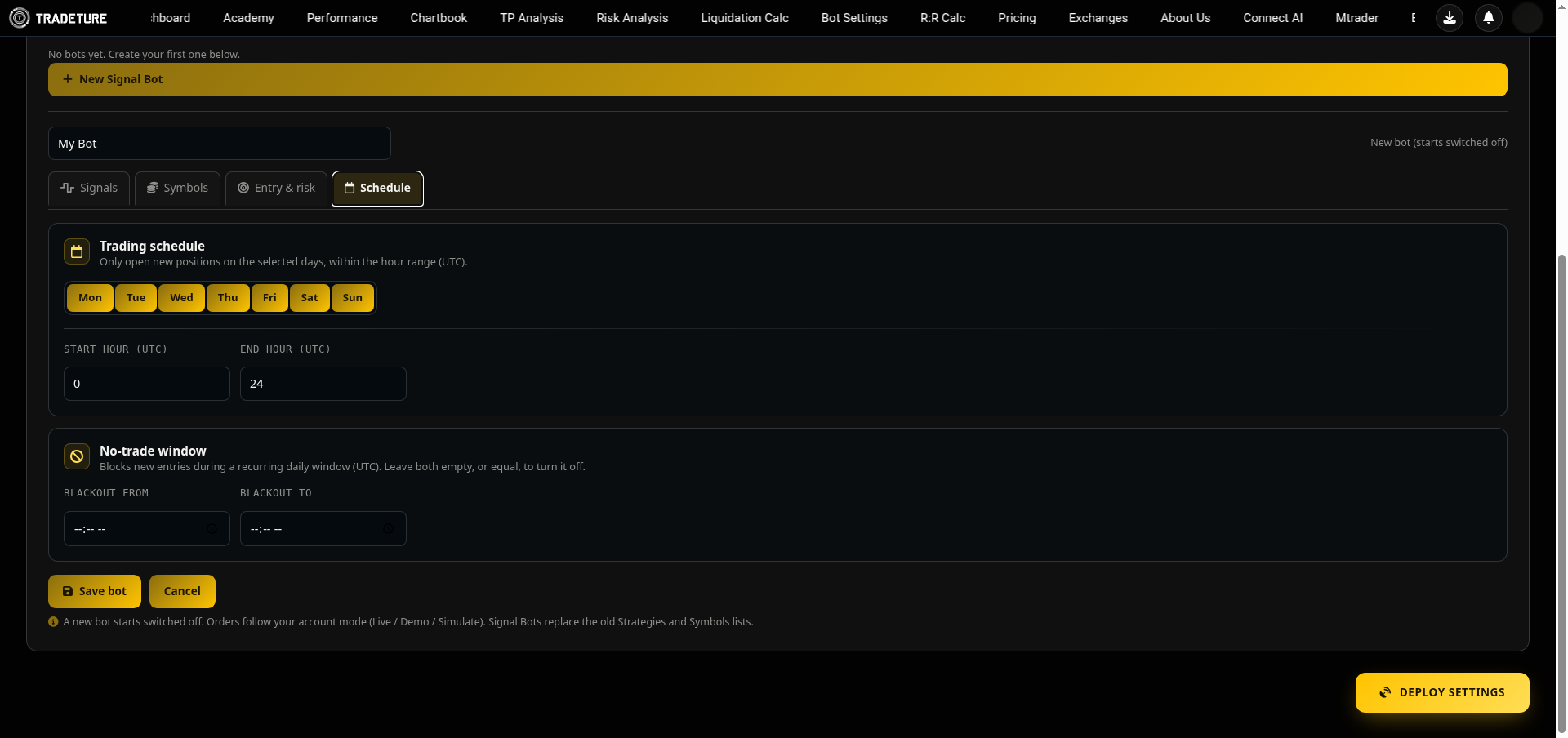
Trading days default to Monday through Sunday. Start hour and End hour are in UTC. The defaults are 0 and 24, so the whole day is in range. The helper is: "Only open new positions on the selected days, within the hour range (UTC)."

There is also an optional daily no-trade, or blackout, window in UTC. Leave both ends empty, or equal, to turn it off.

Press Save bot, then press Deploy Settings. Until you deploy, the change stays on the page only.

Schedule tab with Monday through Sunday selected, start hour 0 and end hour 24 UTC, and empty blackout fields.
Figure 7. The Schedule tab. All seven days are selected, the window is 0 to 24 UTC, and the blackout fields are empty. Save bot and Deploy Settings are at the bottom.

Step 08 of 10

Backtest first

The same entry and exit settings can be run on the Backtest page, at /backtest, before you switch a bot on. Do that first.

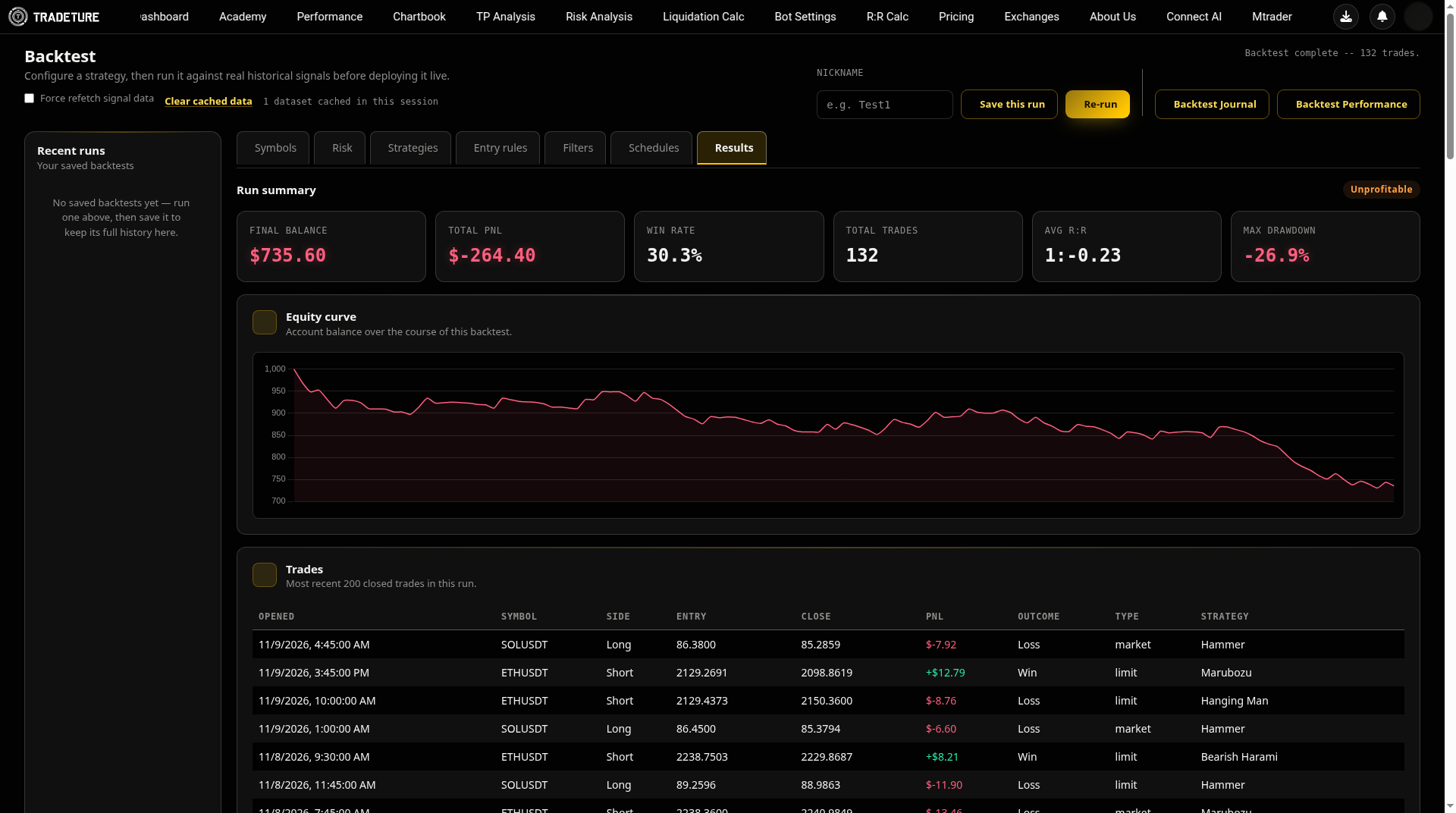
A matching backtest of Candle Patterns on major symbols, 15m, Fibonacci, reward-to-risk 2, and 1% risk finished unprofitable. The Results tab showed:

Field Value What it shows
Final balance $735.60 Ended here, from a $1,000 start.
Total PnL -$264.40 The run lost money.
Win rate 30.3% Share of trades that won.
Total trades 132 Closed trades in the run.
Avg R:R 1 : -0.23 Average result in R.
Max drawdown -26.9% Largest peak-to-trough drop.

The equity curve falls across the run. The badge on the results is Unprofitable. That is the lesson. An untuned default strategy is not an edge. A backtest can look complete and still lose. Past results do not predict the next run. Backtest before you switch the bot on, and read the whole result, including the drawdown, not only the win rate.

Backtest results showing a final balance of 735.60 dollars, a loss of 264.40, a 30.3 percent win rate, 132 trades, and a 26.9 percent max drawdown, marked Unprofitable.
Figure 8. Backtest results for that matching run. Final balance $735.60 from $1,000, PnL -$264.40, win rate 30.3%, 132 trades, max drawdown -26.9%. The run is marked Unprofitable.

Step 09 of 10

Switch on and read the result

Each bot card has its own on/off toggle. Flip it on, then press Deploy Settings. Confirm the account is still in SIMULATE, or the mode you intend, before you do that. Then watch Mtrader, on the ORD. & POS. tab.

The first run was named BTC Guide Bot: Candle Patterns, 15m, BTCUSDT only, 1% risk, reward-to-risk 2. It ran for about 10 minutes. No signal fired, and no orders were placed. A narrow setup fires rarely. That is expected, and it is fine.

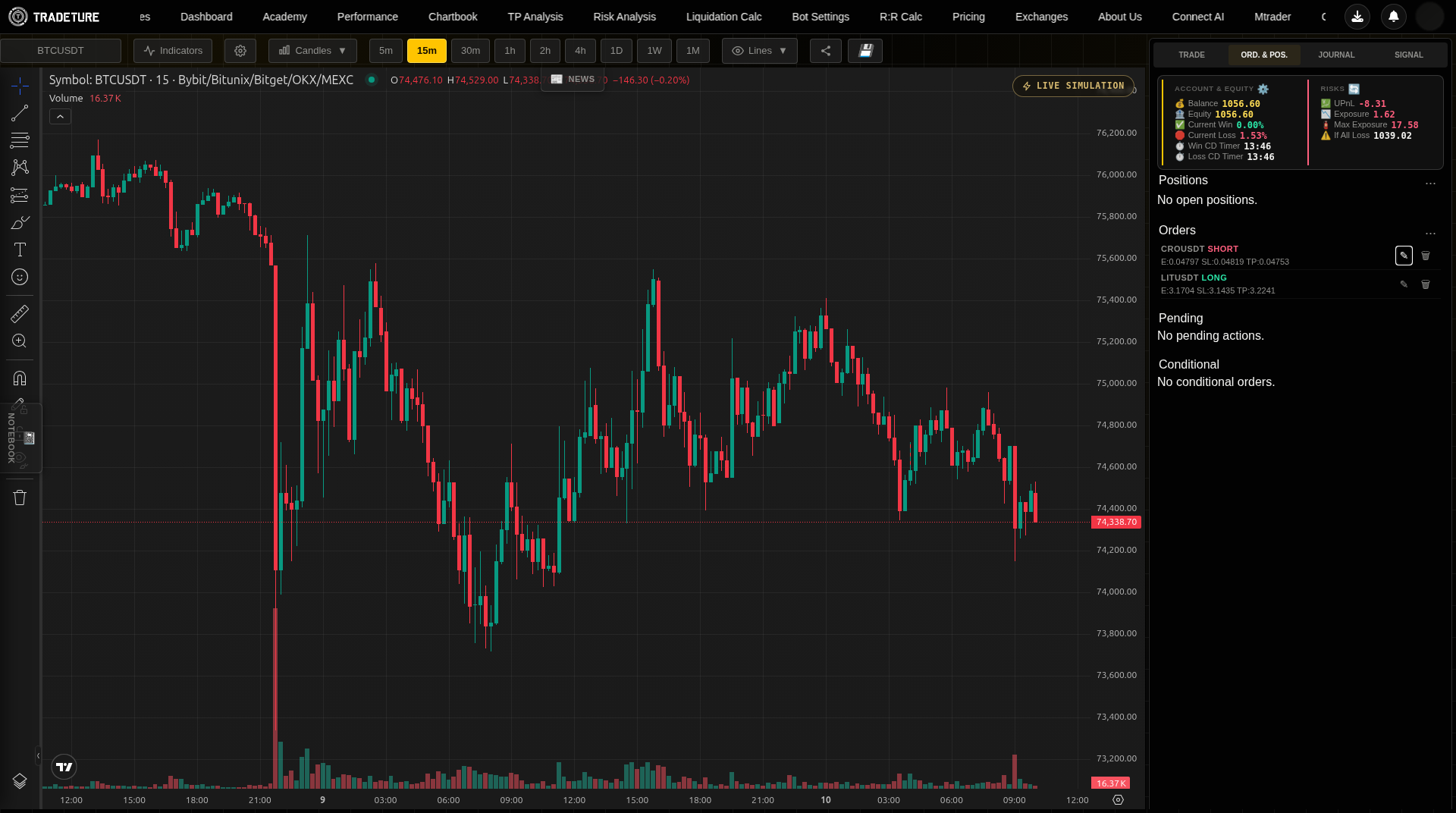
The second run widened the same bot: all symbols, 5m and 15m, 0.5% risk, and a cap of 1 open long and 1 open short. Within about 20 minutes the bot placed two simulated limit orders. Neither had filled. There were no open positions:

  • CROUSDT short: entry 0.04797, stop 0.04819, take-profit 0.04753.
  • LITUSDT long: entry 3.1704, stop 3.1435, take-profit 3.2241.

The gold LIVE SIMULATION badge was on the chart. These orders did not reach an exchange. There were no journal entries yet, because nothing had filled.

Mtrader in LIVE SIMULATION on the ORD. and POS. tab, with a CROUSDT short and a LITUSDT long limit order working, and no open positions.
Figure 9. Mtrader, ORD. & POS., in LIVE SIMULATION. Two simulated limit orders are working: CROUSDT short and LITUSDT long. There are no open positions. Neither order had filled at this point.

Step 10 of 10

Stop the bot, then check the book

To stop one bot, flip its own toggle off, then press Deploy Settings. To pause every bot at once, use the master switch on Bot Status & Risk.

Switching a bot off does not cancel orders it already placed. After this bot was switched off, the CROUSDT and LITUSDT limit orders were still open on Mtrader. Check ORD. & POS. after you stop. If you do not want those orders, cancel them there.

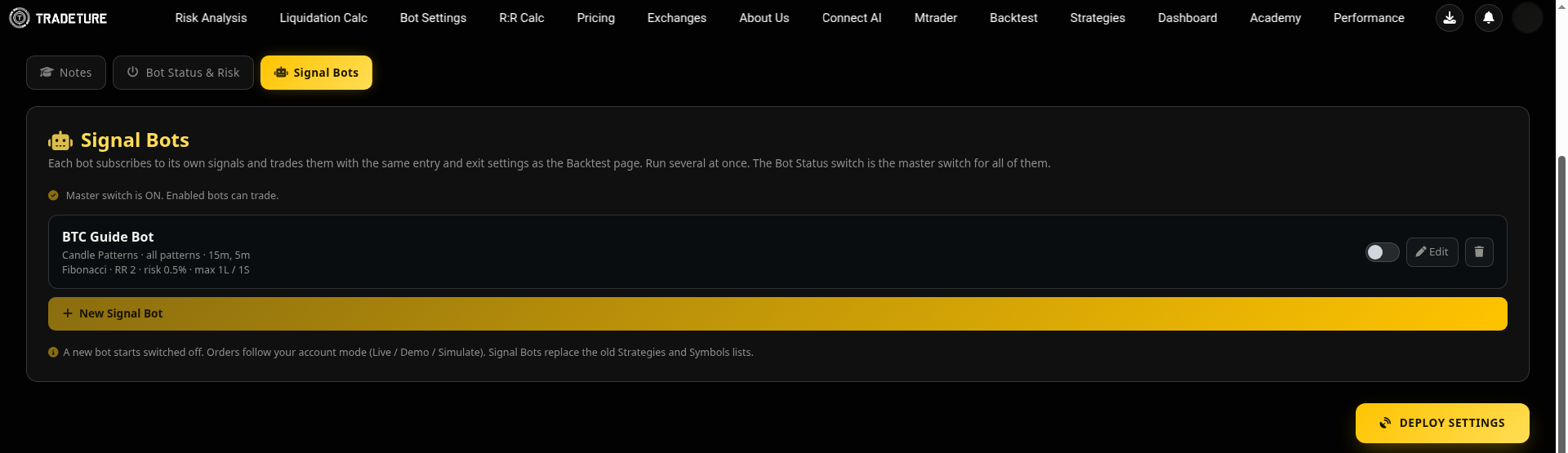
In this walkthrough the card still showed Candle Patterns, 15m and 5m, 0.5% risk, and a cap of 1 long and 1 short, with the toggle off again.

Signal Bots tab with BTC Guide Bot switched off after the second run, still showing 15m and 5m, 0.5 percent risk, and a cap of 1 long and 1 short.
Figure 10. BTC Guide Bot switched off again. The card still shows Candle Patterns, 15m and 5m, 0.5% risk, and a cap of 1 long and 1 short. Deploy Settings is required for the change to take effect. The two limit orders were still on the book after this.

Tips

  1. Read the Notes tab first. Your real job is often to stop the bot.
  2. Confirm SIMULATE, Demo, or Live before you switch anything on. If the mode is not what you think it is, stop.
  3. Press Deploy Settings after every change. A toggle that is not deployed has not taken effect.
  4. Backtest the same rules before you arm the bot. Read the drawdown and the PnL, not only the win rate.
  5. An untuned default is not an edge. The matching backtest in this walkthrough finished unprofitable.
  6. A narrow setup may place no orders for a long time. That is not a fault by itself.
  7. Set risk per trade and the max open long and short on the bot, and check the account-level caps on Bot Status & Risk.
  8. Use fee and slippage tolerance so a signal is skipped when the all-in loss at the stop would exceed the risk you allowed.
  9. After you stop a bot, check Mtrader's ORD. & POS. Switching the bot off does not cancel working orders.
  10. Trade, journal and analyze in one integrated platform.

Educational only, not financial advice. This walkthrough used simulated funds in SIMULATE mode. Past performance does not predict future results. Leveraged futures carry a high risk of loss. The screens and numbers here are for learning Signal Bots, not for copying a setup.

What is a crypto futures trading bot?

How to backtest a crypto futures strategy

Connecting an AI agent

Last reviewed by Ric Mescallado