User guide 03

Chartbook

When your profile is Public, every trade is posted automatically, with the full journal detail.

Chartbook works like Myfxbook, but with the full trade detail: chart drawings, strategy, emotion, why you entered, why you closed, the lesson, the outcome, PnL, and the R-multiple. When Visibility is Public, every trade is posted to Chartbook automatically. There is no manual posting. When Visibility is Private, only you can see it, and your trades stay off public view. Chartbook does not send orders.

This walkthrough uses LIVE SIMULATION on a demo account. The gold SIMULATE tags and the LIVE SIMULATION badge mean the trades are simulated and nothing reaches a real exchange. The nickname on the demo profile is TraderT. The numbers in the screens are kept so you can follow the record. They are simulated funds, not a live result.

Showing losers as well as winners is what makes a record verifiable. The simulated BTCUSDT long from the Journal guide, a loss of -0.40R, is on this book when the profile is Public. That is the point, not a page of winners only.
Educational only, not financial advice. Past performance does not predict future results. Nothing in this guide is an offer to trade, a signal, or a promise of profit.

In this guide

Step 01 of 07

Browse the Chartbook feed

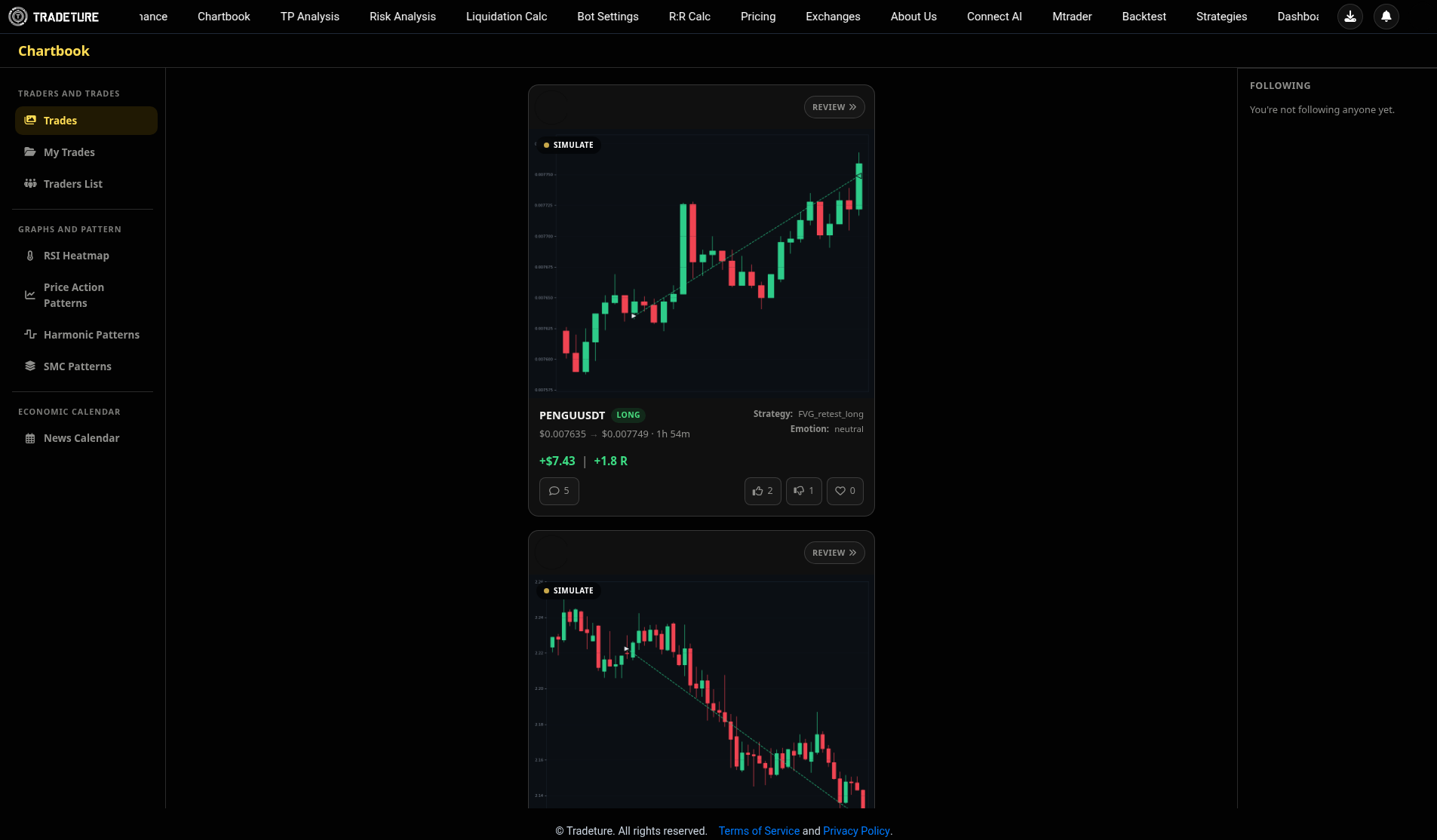
Open Chartbook. Under Traders and Trades in the left nav you will see three tabs: Trades, My Trades, and Traders List. Trades is the public feed.

Each card is a public trade. This example is a simulated PENGUUSDT LONG, tagged SIMULATE. Strategy is FVG_retest_long, Emotion is neutral, and the result reads +$7.43 and +1.8 R, with the path $0.007635 to $0.007749 over 1h 54m. A REVIEW button opens the full trade.

This is another trader's public simulated trade, shown so you can see what the feed looks like. Other traders' names and avatars are hidden in these screenshots. The card also carries comments and reactions. Chartbook does not send orders from this feed.

Chartbook Trades feed with tabs for Trades, My Trades, and Traders List. A SIMULATE card shows a PENGUUSDT long, strategy FVG_retest_long, plus 7.43 dollars and plus 1.8 R.
Figure 1. Chartbook is open on the Trades tab, with My Trades and Traders List in the left nav. A public simulated PENGUUSDT LONG card shows Strategy FVG_retest_long, Emotion neutral, +$7.43, and +1.8 R, with a SIMULATE tag and a REVIEW button.

Step 02 of 07

Read a public trade in full

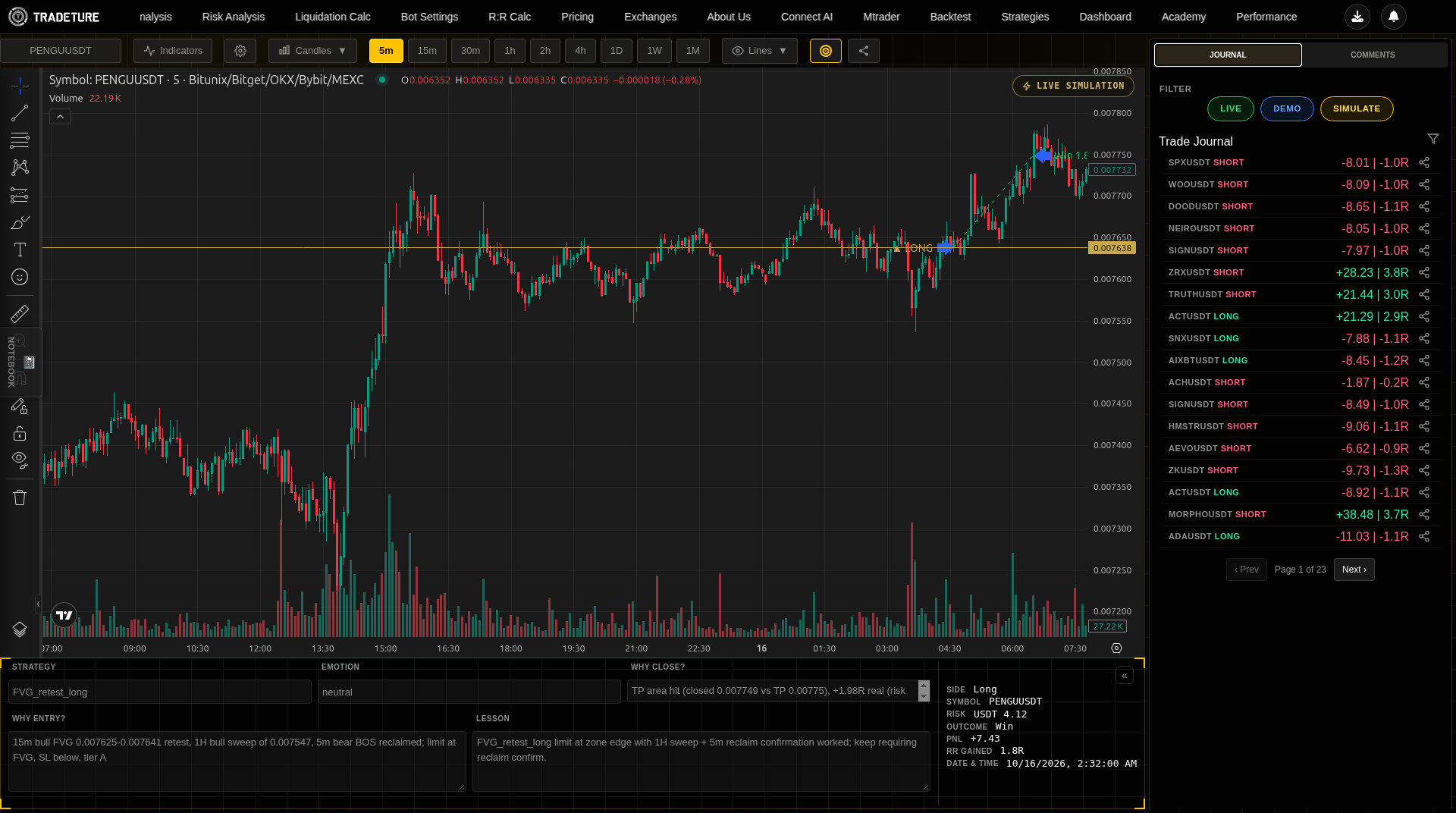
Click REVIEW on a public trade to open it in full. The chart shows the drawings on the trade, including the LONG and TP marks in this example. The gold badge reads LIVE SIMULATION.

Below the chart is the same kind of journal you write on your own trades. In this walkthrough the public fields are:

  • Strategy: FVG_retest_long
  • Emotion: neutral
  • Why Entry? / Why Close? / Lesson: filled in, including that the take-profit area was hit
  • Outcome: Win    PnL: +7.43    RR Gained: 1.8R
  • Side / Symbol / Risk USDT: Long, PENGUUSDT, 4.12
  • Date & Time: 10/16/2026, 2:32:00 AM

The Trade Journal list on the right can be filtered with LIVE, DEMO, and SIMULATE. When a profile is Public, this is the detail other people can read: the chart, the notes, and the result.

Public trade detail for a simulated PENGUUSDT long, with chart drawings, journal fields, Outcome Win, PnL plus 7.43, and RR Gained 1.8R, under a LIVE SIMULATION badge.
Figure 2. A public simulated PENGUUSDT long, opened from the feed. The chart shows the drawings. The journal shows Strategy, Emotion, Why Entry, Why Close, and Lesson. Outcome is Win, PnL is +7.43, and RR Gained is 1.8R. The badge reads LIVE SIMULATION.

Step 03 of 07

Set Visibility to Public

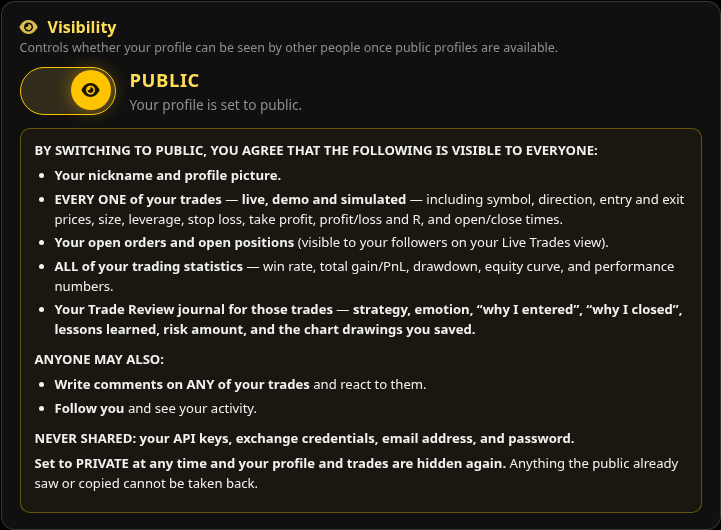
On your profile, set Visibility to PUBLIC. The screen reads, "Your profile is set to public." The control decides whether your profile can be seen by other people once public profiles are available.

When Public, every trade is posted to Chartbook automatically. There is no manual posting. The gold panel lists what may be visible: your nickname and profile picture; every trade, live, demo, and simulated, including symbol, direction, entry and exit, size, leverage, stop loss, take profit, P/L and R, and open and close times; open orders and open positions, visible to followers on the Live Trades view; all trading statistics, including win rate, total gain and PnL, drawdown, the equity curve, and other performance numbers; and the Trade Review journal: strategy, emotion, why you entered, why you closed, lessons learned, risk amount, and chart drawings. Other people may comment, react, and follow.

You can set Visibility to Private at any time, and your profile and trades are hidden again. Anything the public already saw or copied cannot be taken back.

Profile Visibility set to Public. The screen reads Your profile is set to public. The gold panel lists what may be visible when the profile is Public.
Figure 3. Visibility is set to PUBLIC. The screen reads, "Your profile is set to public." The gold panel lists what may be visible when the profile is Public.

Step 04 of 07

View your public performance

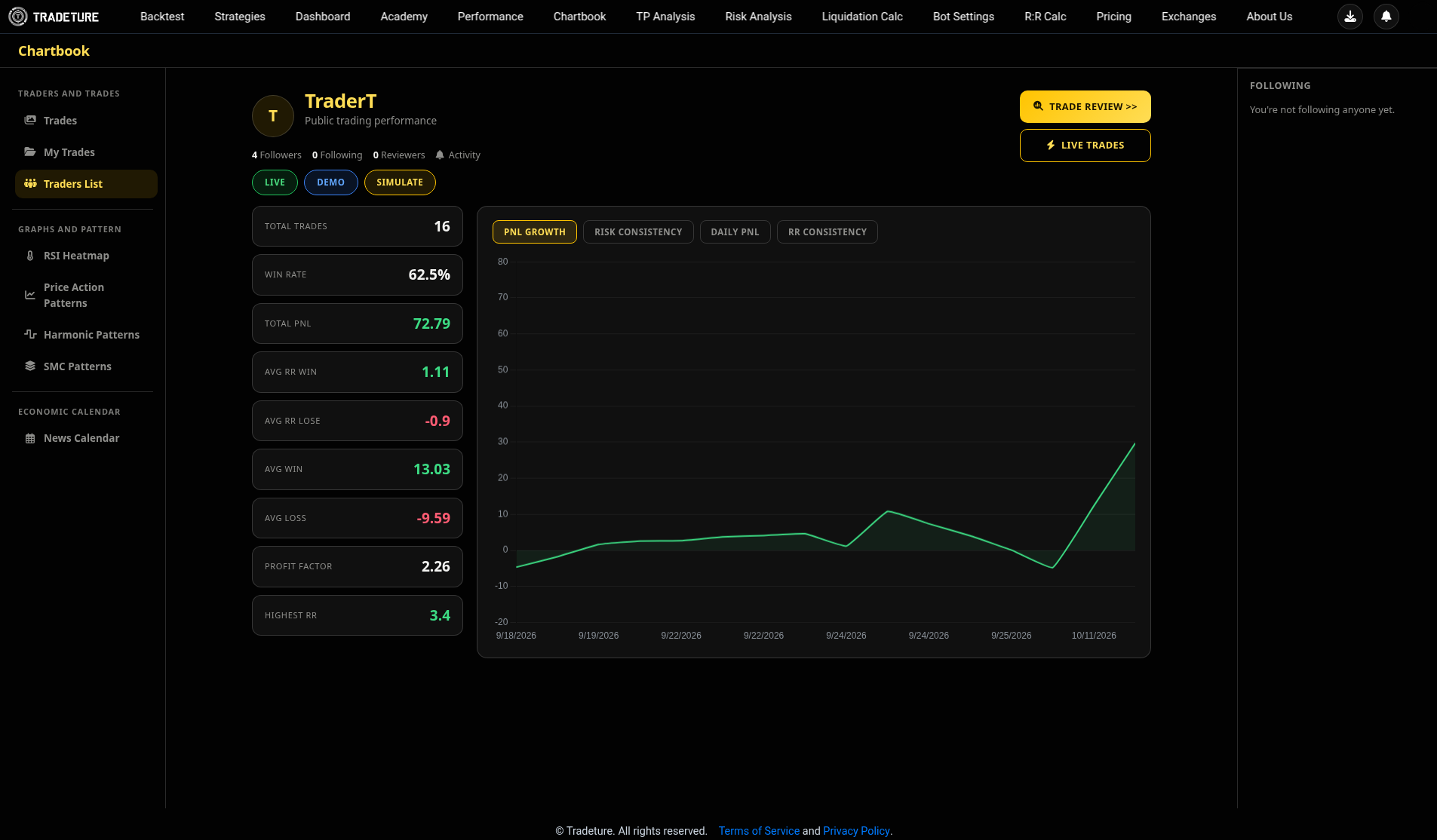
Once Visibility is Public, your Chartbook profile is the public performance page. In this walkthrough the demo nickname is TraderT, and the heading reads Public trading performance. The SIMULATE filter is on, so the figures are simulated trades, not a live result.

This profile shows 16 total trades, with win rate, total PnL, average RR, and the other summary numbers in the left column. Treat them as a record of this demo account, not a forecast. The chart tabs are PnL Growth, Risk Consistency, Daily PnL, and RR Consistency. PnL Growth is selected here, with the curve running from 9/18/2026 to 10/11/2026.

TRADE REVIEW and LIVE TRADES open those views from the profile. The follower counts on this demo profile are also visible at the top.

Demo Chartbook profile for TraderT, headed Public trading performance, with 16 simulated trades and chart tabs for PnL Growth, Risk Consistency, Daily PnL, and RR Consistency.
Figure 4. The demo account's public Chartbook profile, nickname TraderT. Public trading performance, 16 simulated trades, SIMULATE selected. The chart tabs are PnL Growth, Risk Consistency, Daily PnL, and RR Consistency.

Step 05 of 07

See your journal on the public record

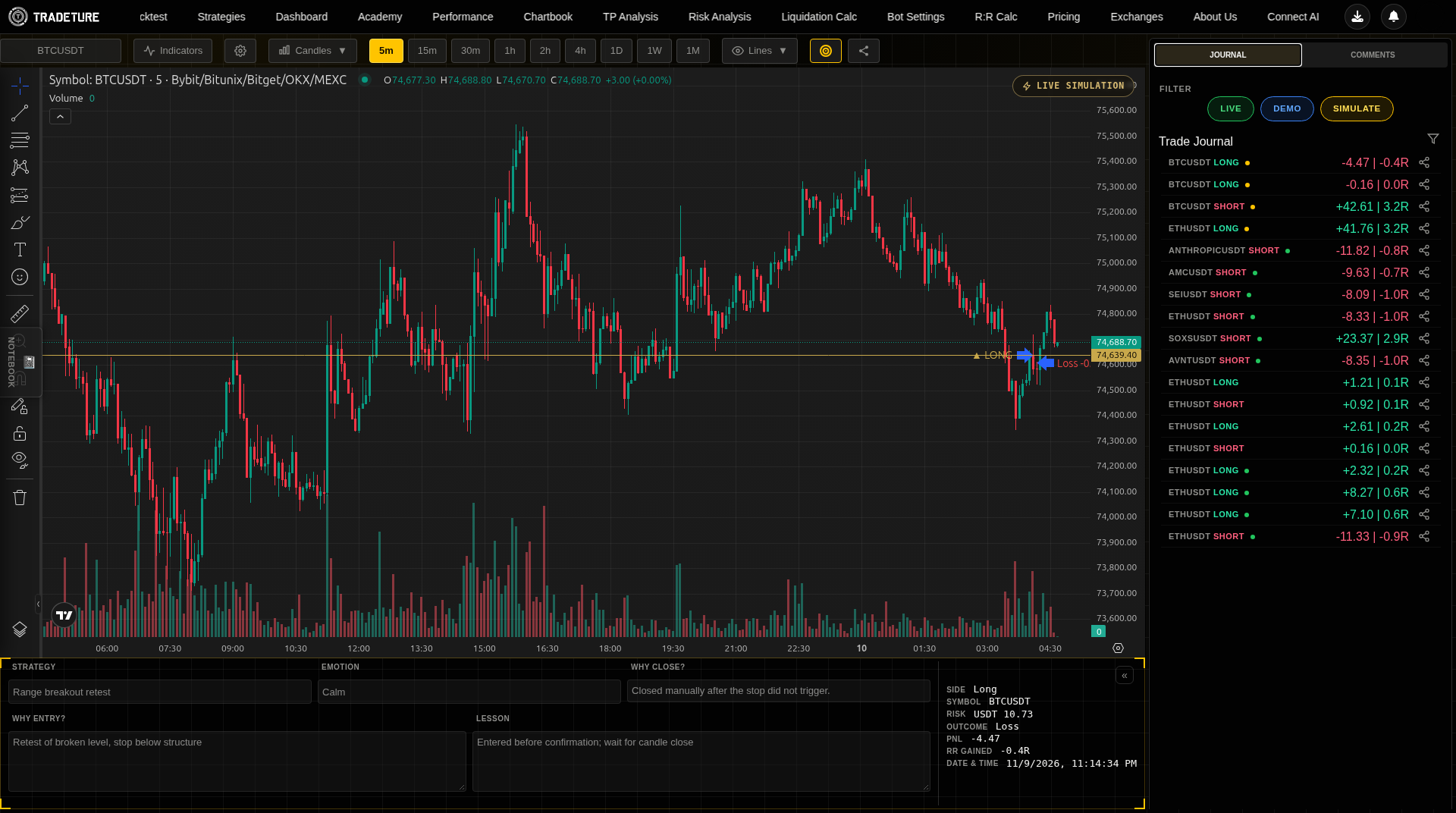
When your profile is Public, the journal you already wrote is what other people can read. There is no separate post to compose. This is the simulated BTCUSDT LONG from the Journal guide, now on Chartbook under a LIVE SIMULATION badge. The chart marks LONG and Loss -0.40R.

The public fields match what you entered in the journal:

  • Strategy: Range breakout retest
  • Emotion: Calm
  • Why Entry?: Retest of broken level, stop below structure
  • Why Close?: Closed manually after the stop did not trigger.
  • Lesson: Entered before confirmation; wait for candle close
  • Outcome / PnL / RR Gained: Loss, -4.47, -0.4R
  • Risk USDT / Date & Time: 10.73, 11/9/2026, 11:14:34 PM

A losing trade stays on the book. Write the notes as if someone will read them, because when you are Public, someone can.

The demo account's auto-posted BTCUSDT long on Chartbook, with the journal notes from the Journal guide, Outcome Loss, PnL -4.47, and RR Gained -0.4R.
Figure 5. The same BTCUSDT long from the Journal guide, now on Chartbook. Strategy, Emotion, Why Entry, Why Close, and Lesson are the notes you wrote. Outcome is Loss, PnL is -4.47, and RR Gained is -0.4R. The chart marks LONG and Loss -0.40R.

Step 06 of 07

Switch Visibility to Private

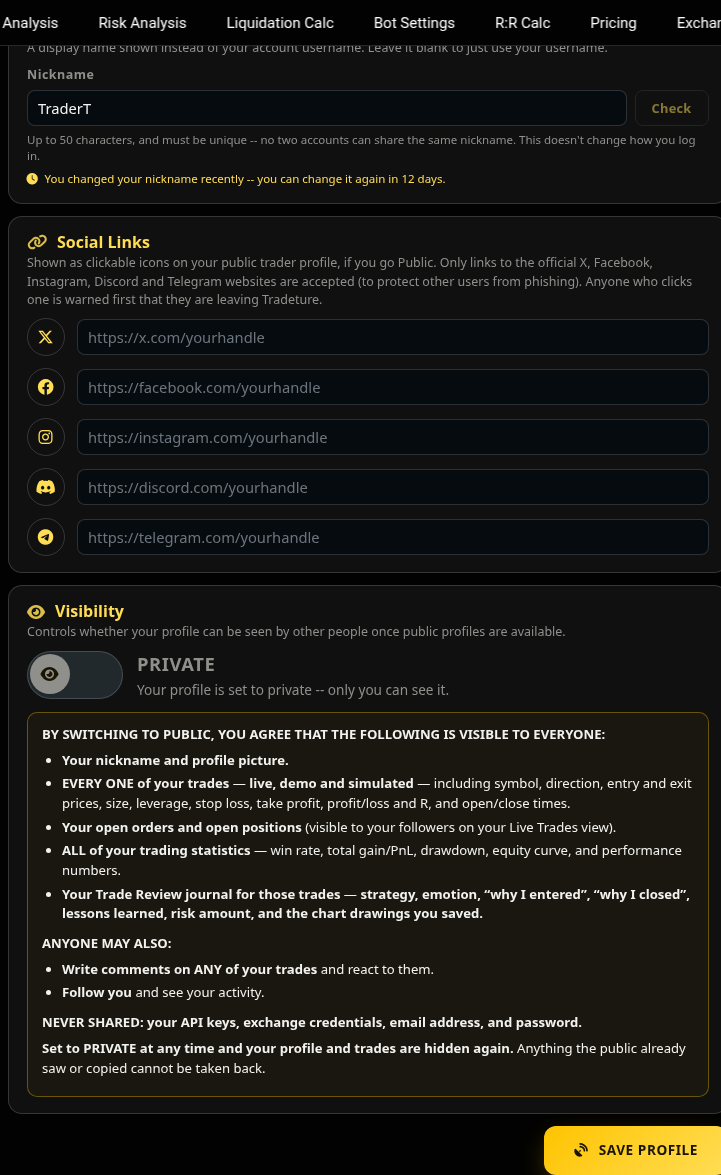
You can switch Visibility to PRIVATE at any time. The screen then reads, "Your profile is set to private. Only you can see it." Your profile and trades are hidden again, and they stay off public view.

The same gold panel still lists what may be visible when the profile is Public. The warning still holds: anything the public already saw or copied cannot be taken back. Use SAVE PROFILE to keep the change.

The nickname field on this page still shows TraderT, the same demo name as the public profile in Step 4. Social link fields sit on this page too. They are not required to set Visibility.

Profile Visibility set to Private. The screen reads Your profile is set to private, only you can see it, with a Save Profile button.
Figure 6. Visibility is set to PRIVATE. The screen reads that only you can see it. SAVE PROFILE is at the bottom. The gold panel repeats what Public would share, and that anything already seen or copied cannot be taken back.

Step 07 of 07

Share a PnL card

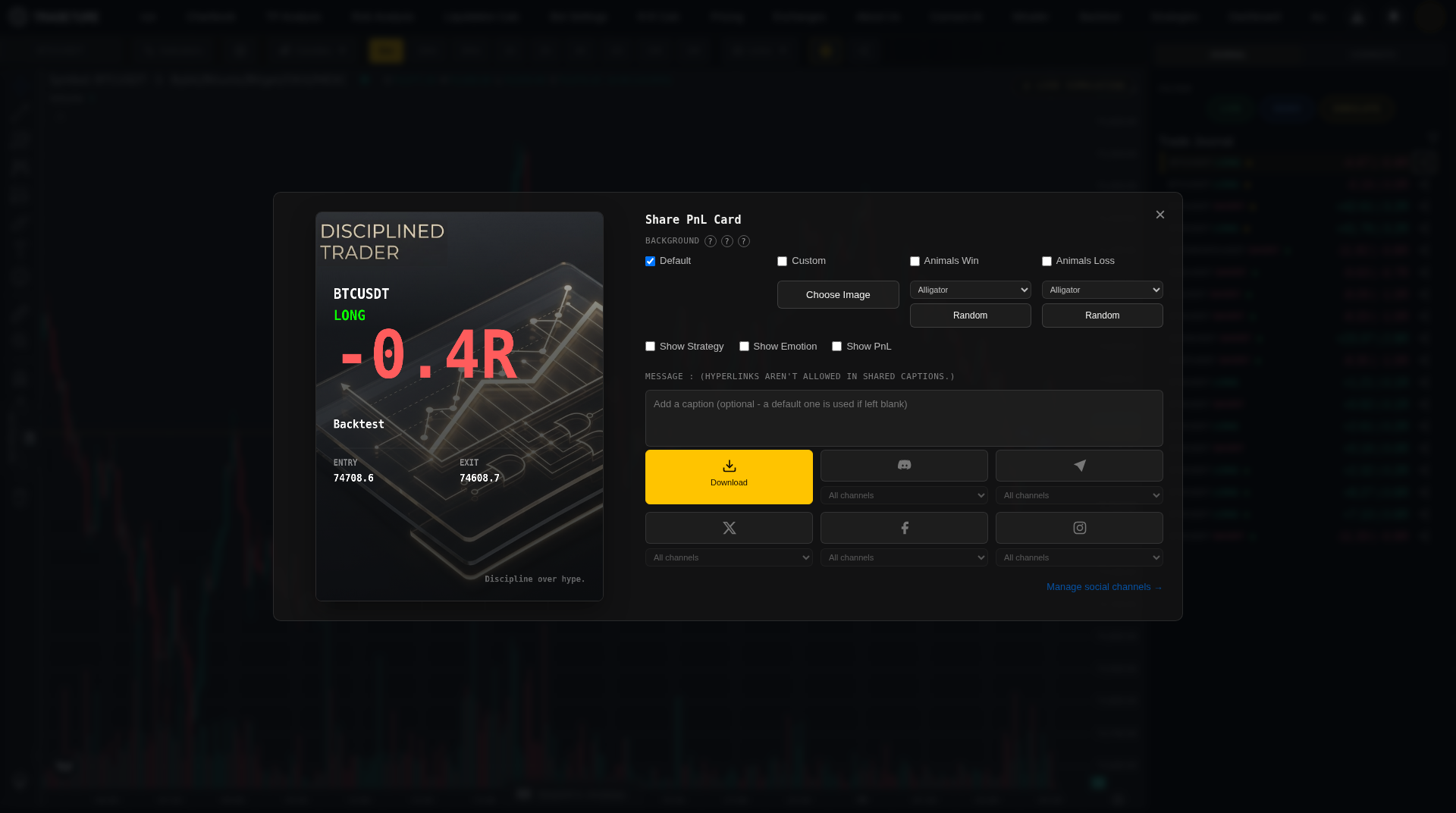
From a trade you can open the Share PnL Card dialog and download a card of that result. In this walkthrough the card is the same BTCUSDT long: LONG, -0.4R, entry 74708.6, exit 74608.7. The card title is DISCIPLINED TRADER, with the line "Discipline over hype."

Background options are Default, Custom (with Choose Image), Animals Win, and Animals Loss. Toggles let you show or hide Strategy, Emotion, and PnL on the card. You can add a caption, or leave it blank and a default is used. Hyperlinks are not allowed in shared captions.

Download saves the card. The dialog also has destinations for X, Facebook, Instagram, Discord, and Telegram, each with an All channels menu, and a Manage social channels link. This is a card of a result you choose to share. Chartbook does not send orders.

Share PnL Card dialog for the BTCUSDT long at -0.4R, with background options, Show Strategy, Emotion, and PnL toggles, a caption field, Download, and Manage social channels.
Figure 7. The Share PnL Card dialog. The preview is the BTCUSDT long at -0.4R, with entry 74708.6 and exit 74608.7. Background options, Show Strategy / Emotion / PnL toggles, a caption field, Download, and Manage social channels are in the dialog.

Tips

  1. Show losers too. A book of winners only is not a verifiable record. This walkthrough keeps the -0.40R loss on the book.
  2. When your profile is Public, the journal notes you write become the public record. Write them like someone is reading.
  3. You can switch Visibility to Private at any time. Your profile and trades are hidden again. Anything the public already saw or copied cannot be taken back.
  4. Public means every trade is posted automatically. There is no manual posting.
  5. Chartbook does not send orders.
  6. The performance tabs on your public profile include PnL Growth, Risk Consistency, Daily PnL, and RR Consistency.
  7. Filter with Live, Demo, or Simulate so you are looking at the account you mean.
  8. The gold panel lists what may be visible when the profile is Public.
  9. Trade, journal and analyze in one integrated platform. The loop is Trade > Journal > Learn > Repeat.

Educational only, not financial advice. This walkthrough used simulated funds in LIVE SIMULATION. Past performance does not predict future results. The screens and numbers here are for learning Chartbook, not for copying a trade.

Last reviewed by Ric Mescallado